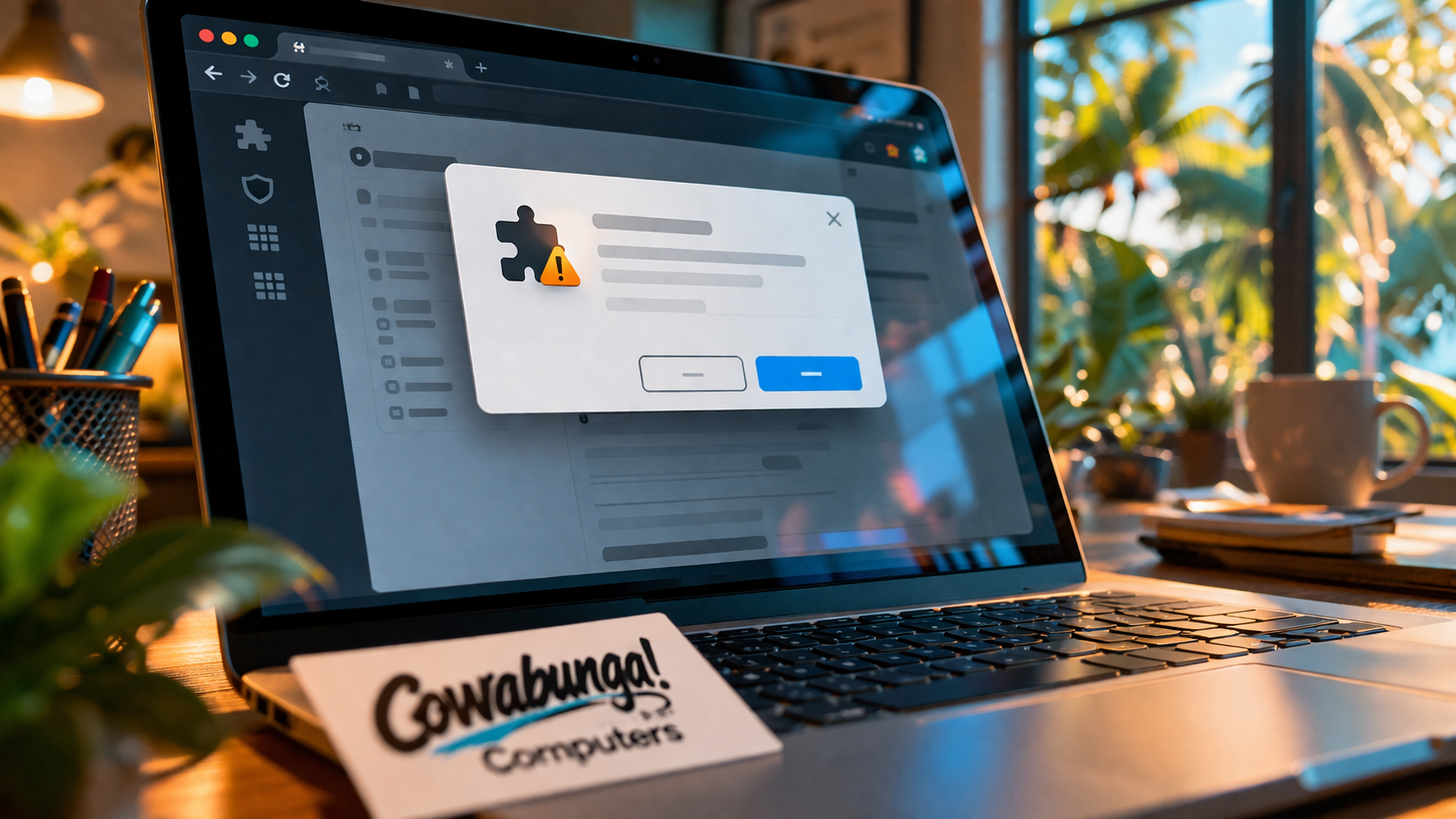
You're browsing normally, and then it starts. Popups you didn't ask for. Your searches redirecting somewhere weird. Ads showing up on pages that never had them before. Your browser feels slower, heavier, and just... off.
A lot of the time, the culprit isn't a virus buried deep in your system. It's a browser addon, a small extension installed quietly inside Chrome, Edge, or Firefox, doing damage from the inside.
What a Malicious Browser Addon Actually Is
Browser extensions are small programs that plug into your browser to add features. Things like ad blockers, password managers, and tab organizers are all extensions. Most are useful and safe.
A malicious addon looks like the real thing but works against you. It can hijack your search results, inject ads into every page you visit, track everything you type, steal saved passwords, or redirect you to phishing sites designed to look like your bank or email login.
Because it lives inside your browser rather than deep in your operating system, it can be harder to spot than traditional malware, and a basic antivirus scan won't always catch it.
How These Things Get Installed
This is the part that surprises most people: you often install them yourself, just not on purpose.
The most common ways a bad addon gets onto your computer:
Bundled with free software. You download a free PDF converter or a game, click through the installer quickly, and a browser extension gets added as part of the deal. It's buried in the terms you didn't read, technically making it "consensual."
Fake update prompts. You're on a website and a popup appears saying your browser or Flash needs an update. You click it, and instead of an update, you get an addon.
Deceptive browser pop-ups. Some sites create popups that are designed to look like system alerts or security warnings. They're just web pages, but they're convincing enough to trick people into clicking "Allow" or "Install."
Phishing links. A sketchy email or text leads you to a page that triggers an installation before you realize what happened.
None of this requires you to be careless. These tactics are designed specifically to trick people who are paying attention.
What They Do Once They're In
Once a malicious addon has a foothold in your browser, it can do a surprising amount of damage:
Redirect your Google searches to a different engine that shows paid results the attacker profits from
Inject pop-up ads on every website, including legitimate ones
Replace real ads with scam ads or links to malware downloads
Monitor your browsing history and sell it to third parties
Capture usernames and passwords as you type them
Show fake "your computer is infected" alerts designed to get you to call a scam tech support number
That last one is particularly nasty. We've seen it around Honolulu where a client's screen fills with a scary-looking alert and a phone number. They call it, a scammer answers, and the situation goes from bad to much worse.
Signs You Might Have a Bad Addon
Your homepage or default search engine changed and you didn't change it
Constant popup ads, even on sites that normally don't have them
New toolbars or icons in your browser you don't recognize
Your browser is noticeably slower than it used to be
You get redirected to unexpected websites when you click links
You see extensions in your browser's settings that you never installed
If any of this sounds familiar, it's worth getting the browser checked out.
What to Do About It
The first step is to open your browser's extension or addon settings and look through what's installed. Remove anything you don't recognize or didn't intentionally install. In Chrome, that's Settings > Extensions. In Edge, it's Settings > Extensions. In Firefox, it's the menu icon > Add-ons and Themes.
If you find something and remove it but the problems come back, or if you're not sure what you're looking at, that's when it makes sense to have someone take a closer look. A removal that seems complete on the surface sometimes leaves registry entries or secondary files that reinstall the addon automatically.
It's also worth running a full scan with a reputable malware tool, not just a basic antivirus, to make sure nothing else got in while the addon was active. In the case we handled this past weekend, we removed the addon and did a thorough inspection of the system to confirm no other infections were present. Catching it at the browser level before it spread further was the best possible outcome.
Keeping It From Happening Again
A few habits that go a long way:
Only install browser extensions from the official Chrome Web Store, Edge Add-ons, or Firefox Add-ons pages
Before installing anything, check the reviews and the number of users
Read installer screens carefully and uncheck anything you didn't ask for
Treat any pop-up that tells you to install something as suspicious until proven otherwise
Use a DNS-level content filter or a business-grade security product if you want a stronger line of defense
If you're a small business with multiple computers, it's worth having someone audit your systems periodically. One employee clicking the wrong thing is all it takes to put an addon on a shared machine.
If your browser has been acting strange, ads are popping up where they shouldn't, or you're just not sure whether your computer is clean, give us a call. We're local to Oahu, we're easy to talk to, and we won't leave you guessing. Reach the Cowabunga! Computers team at 808-468-4416 or send us a message at https://www.smartcows.com/contact.